
How to Safely Sideload APK Files on Android: The Complete Security Guide
Learn how to safely sideload APK files on Android without malware. Trusted APK sources, Play Protect guidelines, permission audits, and security tips.

Almost every Android user eventually encounters this dilemma: you urgently need a specific app — perhaps an open-source privacy tool, a retro gaming emulator, or an app unavailable in your regional market — but you cannot find it anywhere on the Google Play Store. The only viable path forward is downloading the raw package file directly and installing it manually. In the tech world, this process is known as sideloading.
Contrary to common misconceptions, sideloading is 100% legal and supported by Android's open-source architecture. However, stepping outside the Google Play Store removes Google's automated pre-installation safety screening. Without basic precautions, sideloading can expose your device to severe cybersecurity risks. Here is an essential, practical guide on how to sideload APK files safely without compromising your personal privacy or banking security.
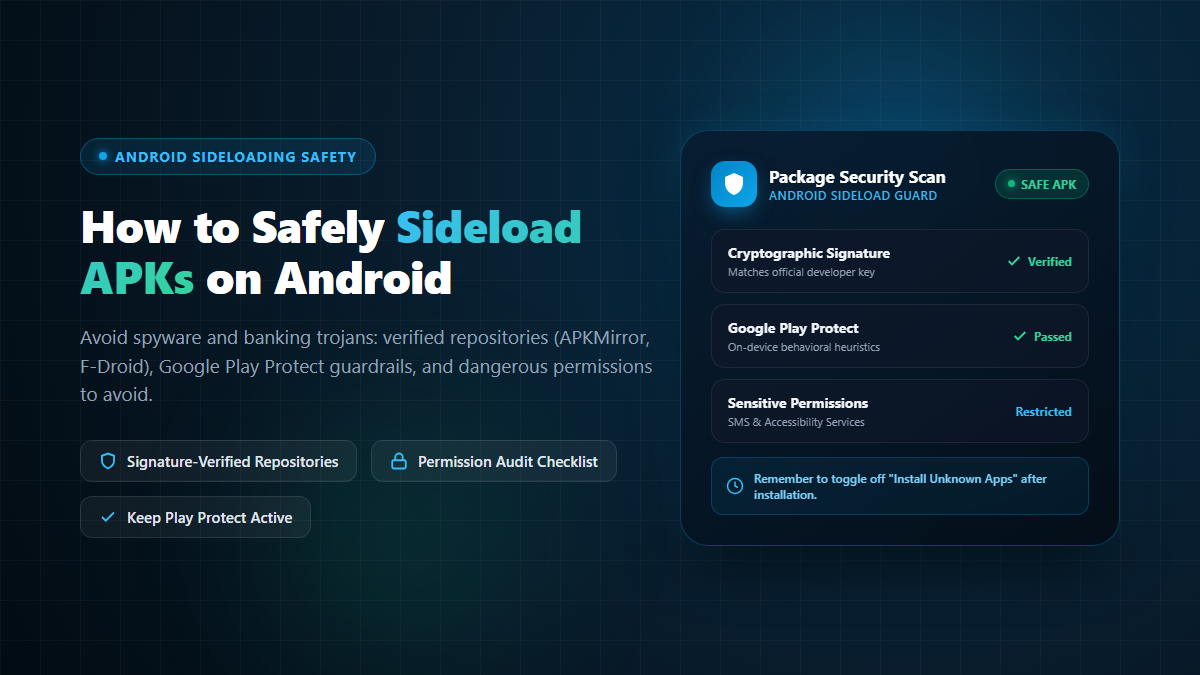
What Are the Real Risks of Installing External APKs?
Every application published on the Google Play Store undergoes automated and manual vulnerability scans, behavioral analysis, and developer identity verification. When you download an APK from an unverified third-party website, you bypass this security filter entirely.
Malicious actors frequently modify popular free apps or premium tools to inject stealthy malware payloads, including:
- Banking Trojans & Overlay Attacks: Malicious APKs that detect when you open banking apps or digital wallets (like bKash, Nagad, or PayPal) and inject an invisible, identical fake login screen on top of your app to harvest your credentials.
- SMS Interceptors: Hidden background services that read incoming SMS messages to steal two-factor authentication (2FA) codes and drain your accounts before you even notice.
- Keyloggers & Spyware: Background trackers that log every keystroke you type, record audio via your microphone, and exfiltrate private photos and documents to remote command-and-control servers.
The 4 Golden Rules of Safe APK Sideloading
1. Only Download from Cryptographically Verified Repositories
The single most critical decision in sideloading is your source. Downloading an APK from a random file-sharing host (MediaFire, Mega, Google Drive), a Telegram channel, or a link posted in social media comments is the fastest way to infect your phone.
Stick exclusively to vetted, trustworthy sources:
- Developer's Official Website: Whenever possible, download directly from the original developer's verified domain (e.g., downloading Signal directly from
signal.orgor Brave frombrave.com). - APKMirror: Operated by the reputable team behind Android Police, APKMirror cryptographically verifies the digital signatures of every single uploaded APK against the official developer keys on the Google Play Store. If an APK has been tampered with or modified in any way, APKMirror rejects it automatically.
- F-Droid: The gold standard repository for Free and Open-Source Software (FOSS). F-Droid builds all packages directly from verified public source code, guaranteeing zero trackers, adware, or spyware.
2. Never Disable Google Play Protect
Many questionable online tutorials instruct users to disable Google Play Protect before installing an external APK. Never follow this advice.
Crucial Fact: You do not need to turn off Google Play Protect to sideload legitimate APKs. Play Protect operates silently on your device, performing real-time behavioral scans on both Play Store apps and sideloaded packages. If Play Protect blocks an APK with a critical red security warning, it is almost certainly detecting a verified threat.
3. Perform a Rigorous App Permission Audit
Before and after tapping "Install", pay close attention to the permissions requested by the application. Always ask a simple common-sense question: Does this app actually need this permission to perform its advertised function?
If a simple flashlight utility requests permission to read your text messages, or an offline photo editor demands access to your phone contacts and location, abort the installation immediately. Be especially vigilant with these high-risk Android permissions:
- Accessibility Services: Highly dangerous if granted to untrusted apps. It allows an app to read everything on your screen (including passwords) and simulate screen taps without your knowledge.
- Device Administrator: Grants deep system control and prevents the application from being uninstalled normally.
- SMS (Read / Receive): Frequently exploited by financial malware to intercept banking OTPs.
- Notification Access: Can intercept sensitive verification push notifications from other apps.
4. Revoke "Install Unknown Apps" After Finishing
When you attempt to install an APK for the first time, Android prompts you to grant the "Install Unknown Apps" permission to your web browser (e.g., Chrome) or File Manager. This permission should strictly be treated as a temporary doorway — not a permanent setting.
Once your desired application is installed, close the installer and follow these steps:
- Go to Settings → Apps → Special app access.
- Tap Install unknown apps.
- Select the browser or file manager you just used, and toggle the switch back to Not allowed (OFF).
Revoking this permission ensures that malicious websites cannot perform unauthorized "drive-by" APK downloads and installation prompts while you browse the web in the future.
Safe Sideloading vs. High-Risk Practices
| Safety Aspect | Safe Best Practice | Dangerous Mistake |
|---|---|---|
| Download Source | Official developer site, APKMirror, F-Droid | Random Telegram groups, WhatsApp forwards, blogs |
| Google Play Protect | Always kept active for real-time heuristics | Disabling security scanning on advice of sketchy guides |
| Permission Scrutiny | Rejecting unrelated SMS or Accessibility requests | Blindly tapping "Allow" on every permission popup |
| Installation Gate | Revoking "Install Unknown Apps" after use | Leaving browser installation permissions open permanently |
Beware Social Engineering & Impersonation Scams
A prevalent cyber scam involves fraudsters calling victims and claiming that their SIM card, bank account, or mobile wallet will be suspended unless they download an "urgent security verification app." The caller sends an APK link via WhatsApp or SMS and instructs the victim to turn off Play Protect and install it.
This is 100% a fraudulent scam. Legitimate banks, telecom operators, and government institutions will never send you raw APK files or demand that you disable Android security features. If you receive such a communication, hang up and report the number immediately.
Final Thoughts
Sideloading is one of the most powerful features of the Android operating system, granting users the freedom to enjoy incredible community-driven software — from privacy-focused media players like NewPipe to decentralized authenticators like Aegis — that cannot exist under Play Store commercial policies.
By enforcing three disciplined habits — verifying your repository, keeping Play Protect enabled, and strictly auditing app permissions — you can safely enjoy the full freedom of Android without ever falling victim to malware.


