
Android Phone Storage Full? 7 Safe Ways to Free Up Space Without Losing Data
Is your Android phone showing Storage Full? Learn 7 safe ways to free up internal storage without losing photos, clearing app cache, and WhatsApp cleanup.

Few things are more frustrating than preparing to take an important photo, download a work document, or update your favorite game, only for Android to flash an urgent alert: "Storage space running out — some system functions may not work."
When storage fills up, your phone doesn't just block new files; it stutters, app launch times drag, and background synchronization fails. In a panic, many users begin haphazardly deleting files, often accidentally erasing precious family photos or critical school assignments in the process.
You do not need to risk your personal data to reclaim gigabytes of storage. Here is a definitive, safe step-by-step guide on how to clear out Android internal storage without losing important memories, work files, or chat histories.
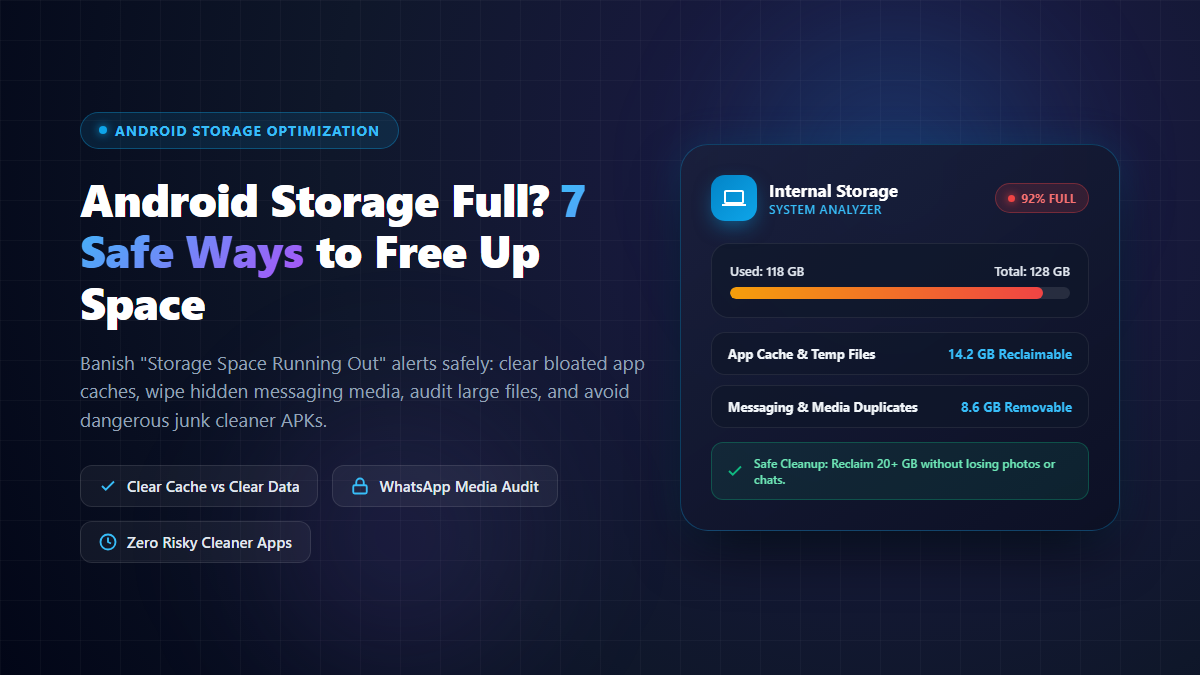
1. Audit Your Storage First (Identify the Culprit)
Before deleting anything, you must understand exactly what is hoarding your storage. Android provides an integrated analytics dashboard that visualizes your disk allocation:
- Open your phone's Settings app.
- Scroll down and tap Storage (on Samsung devices, navigate to Battery and device care → Storage).
- Review the categorized breakdown: Apps, Images, Videos, Audio, Documents, and System.
This single check tells you where to direct your efforts. If "Apps" occupy 60 GB, cleaning your photo gallery won't solve the core issue. If "Videos" dominate the chart, media auditing is your priority.
2. Purge the Downloads Folder
The Downloads directory is Android's digital junk drawer. Every PDF bill, restaurant menu, downloaded APK installer, email attachment, and ZIP archive you ever opened accumulates here indefinitely:
- Open your phone's default Files or File Manager app.
- Select the Downloads folder.
- Sort files by Size (Largest to Smallest).
- Review older installer files (
.apk), completed course handouts (.pdf), and extracted archives (.zip). - Select obsolete files and permanently delete them.
3. Uninstall Dormant & Unused Apps
Most smartphone users install games or utility tools, use them once or twice, and completely forget about them. Modern mobile games frequently command between 2 GB and 15 GB of storage space once asset packs and updates download:
- Navigate to
Settings → Apps → All Apps. - Use the filter menu to sort applications by Size or Last Used.
- Examine apps you haven't opened in over 90 days. If you don't need them, tap Uninstall.
- Safety Note: Never force-uninstall core system services or Google frameworks you do not recognize. Stick strictly to user-installed third-party apps.
4. Clear App Caches (Crucial: Cache vs. Data Explained)
As you scroll through TikTok, Facebook, Instagram, Chrome, and YouTube, these apps silently download temporary image thumbnails, web scripts, and video snippets into your phone's internal storage. Over several months, a single social media app can hoard over 5 GB of temporary cache.
To safely clear this space:
- Go to
Settings → Apps. - Select a storage-heavy app (such as Chrome, Facebook, Telegram, or TikTok).
- Tap Storage (or Storage Usage).
- Tap Clear Cache.
Crucial Distinction — Clear Cache vs. Clear Data:
• Clear Cache (100% Safe): Deletes temporary junk files. You will remain logged into your account, your personal settings are preserved, and your saved chats remain untouched.
• Clear Data / Clear Storage (Caution): Completely resets the application back to factory state. It deletes all local databases, saved passwords, offline downloads, and account logins.
5. Audit Your Gallery and Empty the "Recently Deleted" Bin
High-resolution smartphone cameras capture massive files. A one-minute 4K video at 60 fps consumes roughly 400 MB to 500 MB of space. Furthermore, duplicate bursts and accidental screenshots quickly accumulate unnoticed:
- Open your Gallery or Google Photos app.
- Sort albums by Videos and review lengthy, unnecessary video clips.
- Back up meaningful photos and memories to Google Drive or an external PC before deleting them from your device.
- Don't Forget the Trash Bin: When you delete a photo on modern Android, it is not erased immediately. It is moved to a Trash or Recently Deleted folder, where it continues consuming internal storage for 30 to 60 days. Open your gallery's Trash / Bin album and tap Empty Trash to immediately reclaim that disk space.
6. Clean Up Hidden Messaging App Media (WhatsApp & Telegram)
Instant messaging apps are often the single biggest hidden culprit behind "Storage Full" alerts. WhatsApp automatically saves every video meme, high-resolution family clip, and voice note sent to group chats directly onto your phone's memory.
Rather than manually scrolling through endless individual chats, use WhatsApp's built-in storage manager:
- Open WhatsApp and tap the three dots in the top-right corner → Settings.
- Tap Storage and data → Manage storage.
- Review the section titled "Larger than 5 MB".
- Quickly select and delete forwarded video clips, viral media, and heavy files that you already watched.
7. Use Built-In Device Cleanup (Avoid Scam "Cleaner" Apps)
Modern Android operating systems already include secure, native cleanup utilities:
- Google Pixel / Stock Android / Motorola: Open the official Files by Google app and tap the Clean tab at the bottom left. Google's intelligent algorithm identifies duplicate files, old screenshots, and unused apps with zero ads.
- Samsung: Navigate to
Settings → Battery and device care → Optimize now, or use the Storage Booster utility. - Xiaomi / POCO: Use the native Security → Cleaner tool to remove cache residues.
Security Warning: Never install third-party "RAM Boosters", "Battery Coolers", or "Super Cleaner Master" apps from the Play Store or web links. These apps are notoriously ad-infested, run battery-draining background processes, and frequently compromise user privacy.
Safe Storage Cleanup vs. High-Risk Mistakes
| Cleanup Action | Safe Best Practice | Dangerous Mistake |
|---|---|---|
| App Cleaning | Tapping "Clear Cache" on heavy apps | Tapping "Clear Data" and wiping account logins |
| Cleaner Utilities | Files by Google or native OEM Device Care | Installing third-party ad-ridden "Super Cleaners" |
| Media Deletion | Backing up memories first & emptying Trash bin | Deleting files without checking cloud sync status |
| Messaging Media | Using WhatsApp's "Manage Storage" filter | Deleting WhatsApp database folders from file manager |
Long-Term Habits to Keep Storage Free
Maintaining free storage is far easier than performing emergency cleanups when your phone freezes. Cultivate these four low-effort digital habits:
- Weekly Downloads Check: Spend 60 seconds every Sunday deleting temporary files from your Downloads folder.
- Monthly WhatsApp Purge: Clear forwarded media files over 5 MB once a month.
- Automatic Cloud Backups: Enable Google Photos or Microsoft OneDrive to automatically back up full-resolution photos, then tap "Free up space on this device" to safely delete local duplicates.
- Empty the Bin Regularly: Remember that deleted photos and files sit in your Trash folder until you explicitly empty them.
Final Thoughts
An Android "Storage Full" notification is simply a reminder that your device needs basic digital housekeeping. By auditing your disk usage, clearing app caches, managing messaging duplicates, and utilizing native tools like Files by Google, you can instantly reclaim dozens of gigabytes without losing a single important photo or conversation.


