
5 Safe Android Developer Options Settings You Should Actually Change
Discover 5 safe Android Developer Options settings to make your phone feel twice as snappy, fix animations, enable dark mode, and avoid risky settings.

5 Safe Android Developer Options Settings You Should Actually Change (And Which to Avoid)
Have you ever heard the tech myth that simply toggling on Android's hidden Developer Options will instantly transform your phone into a lightning-fast powerhouse? Many users enable the hidden menu expecting an overnight performance miracle, only to find that nothing noticeably changes.
Here is the truth: enabling Developer Options on its own changes zero hardware parameters. The real utility lies within a few specific, carefully selected toggles tucked deep inside the menu. More importantly, because Developer Options is engineered for software engineers and hardware testers, blindly flipping unfamiliar switches can cause graphical glitches, break push notifications, or trigger security lockouts in your banking apps. Here are the 5 safest, most practical Developer Options settings you should actually tweak — and the dangerous ones you should leave untouched.
First: How to Unlock Developer Options on Any Android Phone
By default, Google hides this menu to prevent everyday users from accidentally altering low-level operating system parameters. Unlocking it takes less than thirty seconds:
- Open your phone's Settings app and scroll down to About Phone.
- Locate the Build Number entry. (On Xiaomi/POCO devices, look for OS Version or MIUI Version; on Samsung devices, go to Software information → Build number).
- Tap Build Number rapidly 7 times in a row.
- If prompted, enter your lock screen PIN, pattern, or fingerprint to confirm your identity.
- You will see a toast notification declaring: "You are now a developer!"
Now, head back to your main Settings menu. You will find the new Developer Options entry located under System (or Additional Settings on Xiaomi, OnePlus, and Oppo devices).
The 5 Safe Developer Options You Should Tweak
1. Reduce Animation Scales (The Instant Responsiveness Hack)
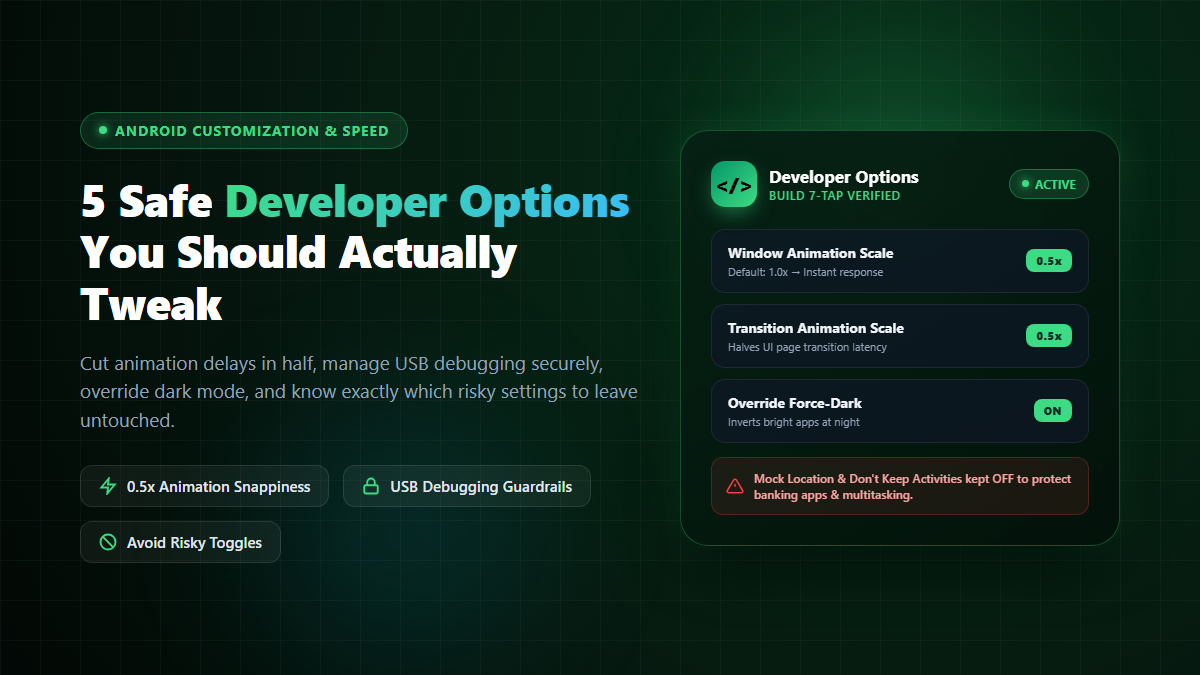
This is easily the single best tweak in the entire menu. When you open an app, return to your home screen, or switch menus, Android plays smooth graphic animations. By default, these are set to a 1.0x duration. While visually pleasing, they create a subtle artificial delay.
Scroll down to the Drawing section and look for these three settings:
- Window animation scale → Change from
1xto 0.5x - Transition animation scale → Change from
1xto 0.5x - Animator duration scale → Change from
1xto 0.5x
This adjustment does not overclock your processor, but it cuts your UI transition times exactly in half. Windows pop open instantly, app drawers glide open immediately, and your device feels twice as snappy and agile without consuming a single extra percent of battery.
2. USB Debugging (Enable Strictly When Needed)
USB Debugging allows your phone to communicate directly with a computer via the Android Debug Bridge (ADB). It is essential if you need to install APK files from a PC, recover files when your display is cracked, or backup app data.
However, treat this toggle as a tool, not a permanent state:
- Best Practice: Keep USB Debugging OFF by default.
- Only switch it on when actively connected to your trusted personal computer. Once your file transfer or troubleshooting is complete, toggle it back off. Leaving it permanently active introduces security vulnerabilities if your phone is ever plugged into unknown public charging kiosks or shared computers.
3. Stay Awake (Keep Screen On While Charging)
Located near the top of the menu, the Stay Awake toggle prevents your screen from turning off or going to sleep as long as the phone is plugged into power.
This is exceptionally handy in specific situations:
- Following a cooking recipe in the kitchen without having to touch the screen with messy hands.
- Reading lengthy technical manuals, trade charts, or monitoring dashboard metrics at your desk.
- Caution: Turn this off for ordinary overnight bed charging to avoid unnecessary thermal buildup and prevent OLED display image retention (burn-in).
4. Force Dark Mode (Override Force-Dark)
While most modern apps now offer native dark themes, a handful of older or niche applications still blast your eyes with blinding white backgrounds. Enabling Override Force-Dark instructs the Android system renderer to automatically convert bright backgrounds into sleek, dark shades.
This provides immense eye comfort during late-night browsing and helps conserve battery life on devices with OLED or AMOLED screens. If you notice that an individual app inverts images or button colors incorrectly, you can simply toggle it back off.
5. Background Process Limit (Gentle Memory Management)
On budget smartphones or older hardware equipped with 2GB to 4GB of RAM, running numerous background apps can cause stuttering and thermal throttling. Inside the Apps section, you can adjust the Background process limit from Standard limit to At most 3 or At most 4 processes.
This frees up operational memory for foreground tasks. However, avoid setting it to "No background processes," as doing so will kill essential background tasks like instant messaging sync and weather updates.
Developer Settings Comparison & Safety Matrix
| Setting | Recommended Value | Safety Level | Primary Benefit |
|---|---|---|---|
| Animation Scales (All 3) | 0.5x | 100% Safe | Instantly halves UI latency; feels much faster |
| USB Debugging | OFF (ON only when using ADB) | Moderate / Situational | Allows PC debugging and APK sideloading |
| Stay Awake | OFF (Turn on during desk reading) | Safe | Keeps display active during charging |
| Override Force-Dark | ON (User preference) | Safe | Forces dark mode on unsupported apps |
| Don't Keep Activities | OFF (Do NOT touch) | Dangerous | Breaks multitasking; kills apps on switch |
The Danger Zone: 3 Settings You Should Strictly Avoid
To keep your smartphone stable, secure, and compatible with daily services, steer clear of these options:
- Don't Keep Activities: This setting is meant strictly for developers simulating low-memory crashes. If you enable it, Android will instantly terminate every application the microsecond you navigate away from it. Multitasking becomes impossible, and your phone will feel frustratingly broken.
- Select Mock Location App: While sometimes used for GPS spoofing experiments, modern banking, digital wallet (bKash, Nagad), and ride-sharing applications routinely scan for mock location permissions. Leaving this active will trigger security flags and immediately lock you out of your financial accounts.
- OEM Unlocking: This switch prepares the bootloader partition to be unlocked for custom ROM flashing. If you are not an advanced enthusiast flashing custom firmware, leave this completely untouched to maintain system integrity.
The Bottom Line
Android's Developer Options is a versatile toolbox, not an all-in-one magic wand. Setting your animation scales to 0.5x will give you the satisfying, snappy user experience you are looking for, while respecting the boundaries of the rest of the menu will keep your device secure, private, and running smoothly.


