
10 Best AI Powered Design Tools, Including Free Options
The best AI powered design tools depend on the job you need done. Canva suits marketing visuals and beginners. Adobe Firefly suits client work that needs clear commercial licensing. Midjourney wins on...

The best AI powered design tools depend on the job you need done. Canva suits marketing visuals and beginners. Adobe Firefly suits client work that needs clear commercial licensing. Midjourney wins on image style, and Ideogram handles readable text inside images. Figma Make and Google Stitch fit UI and product work. For free access, start with Canva, Microsoft Designer, or the free tiers of Ideogram and ChatGPT.
The trouble is that these tools solve different problems. A tool that makes a striking poster cannot build a clickable app screen, and a UI generator will not give you a logo-ready illustration. Many people pay for three subscriptions before they find the one that matches their work.
This list sorts ten tools by job. Each entry covers what the tool does, who it suits, and what it costs. The last section helps you match a tool to your own work. I compared them on four points: fit for a specific job, what the free plan really gives you, whether you can edit the output, and what the license says. Prices change often, so confirm them on the vendor's page before you pay.
1. Canva Magic Studio
Canva Magic Studio is the best all-round pick among AI design tools for marketing visuals, because it puts AI generation inside an editor that beginners already know how to use. If you make social posts, flyers, presentations, or ads without a design background, start here.

What it does
Magic Studio bundles Canva's AI features into the regular editor. Magic Design builds layouts from a text prompt or from your own photos and copy, and it returns several options to choose from. Other tools cover generative image edits, background removal, and automatic resizing of one design into many formats.
The real advantage is editability. Results land on a normal canvas with live text and layers, so you fix a headline by clicking it instead of rewriting the prompt. Paid users can also apply a brand kit, which keeps colors, fonts, and logos consistent across campaigns.
Canva's edge is not the AI itself, but that every AI result opens in an editor you can fix by hand.
Who it suits
Canva fits people who produce a steady stream of everyday graphics and want speed over originality. It works especially well for:
- Small business owners and bloggers who post weekly on social media
- Teams that need one design in many sizes
- Beginners who prefer templates and presets to blank prompts
Skip it if you need a distinctive brand identity or exact typographic control. For that you want a trained designer and a tool such as Figma or Illustrator.
Pricing and limits
Canva has a free plan with limited use of its AI features. A paid Pro plan raises those limits and adds brand kits and resizing. Rates vary by billing period and region, so check Canva's pricing page before you subscribe.
The weak spots are prompt adherence and style. An AI-built layout can drift from your instructions, and heavy template use produces a look people recognize. Treat the first result as a draft, then change the fonts and colors until it looks like yours.
2. Adobe Firefly
Adobe Firefly is the best choice among AI powered design tools when you deliver client or commercial work and need to know where the model's training data came from. Adobe trains its own Firefly models to be commercially safe, and that is the main reason agencies pick it.
What it does
Firefly generates images from text and edits them with plain-language instructions. It also powers AI features inside Adobe apps, such as Generative Fill in Photoshop, and it drives generation inside Adobe Express templates. At Adobe MAX 2025 the company announced Firefly Image Model 5, which produces photorealistic images at native 4MP resolution.
Firefly also hosts partner models from companies including Google, OpenAI, and Runway inside the same app. That lets you try several engines without leaving Adobe. Check Adobe's terms to see which models carry its commercial-use assurances, because partner models may not follow the same rules as Adobe's own.
Firefly's selling point is licensing confidence, not the most beautiful pixels.
Who it suits
Firefly suits professionals who already live in Adobe's ecosystem and answer to clients or legal teams.
- Freelancers and agencies who hand finished work to paying clients
- Photoshop and Illustrator users who want AI inside the apps they already use
- Companies whose legal teams ask about training data
If you have no Adobe subscription and only need a quick social graphic, Canva or Microsoft Designer will feel lighter.
Pricing and limits
Firefly gives you free credits to try it, then paid plans and Creative Cloud bundles above that. Adobe Express has its own free tier with Firefly-powered generation inside templates, plus a paid Premium plan. Adobe changes plan details often, so read its current pricing page.
For highly stylized art, Midjourney usually looks better. Generations also spend credits, so regular use needs a paid plan. Budget for that before you build a workflow on the free allowance.
3. Midjourney
Midjourney is the best pick when image style matters more than anything else, such as concept art, editorial illustration, and moodboards. It remains the aesthetic benchmark among image generators.
What it does
You describe an image in text, and Midjourney returns options that you can vary, upscale, and edit. Style references let you steer toward one consistent look across a whole series, which matters for campaigns and illustrated content. Its editing and style tools keep improving with each release.
It is a generator, not a layout tool. You get finished-looking images to use as backgrounds, illustrations, or inspiration, then you add text and structure elsewhere. Many designers pair it with Canva or Figma for that last step.
Use Midjourney to find a look, then build the actual design in a tool that handles layout.
Who it suits
Midjourney rewards people who care about the image itself and are willing to learn prompting.
- Concept artists and illustrators who need fast visual exploration
- Brand designers building moodboards and style directions
- Content creators who want imagery with a strong point of view
If your main output is text-heavy graphics such as banners and quote cards, choose Ideogram or Canva instead.
Pricing and limits
There is no free tier anymore. Plans run $10, $30, $60, and $120 per month, with roughly 20% off for annual billing. Paid plans include commercial usage rights, but terms differ by plan, so read them before client work.
The tradeoffs are a look that becomes recognizable if you lean on defaults and weak control over exact typography. Vary your style references and keep headline text out of the prompt. Add the type yourself afterward.
4. Ideogram
Ideogram is the best choice when your graphic must contain readable text, such as a blog banner, poster, or quote card. Garbled lettering is the most common failure of AI image tools, and Ideogram is built to avoid it.
What it does
Ideogram generates images from prompts and is known for accurate text rendering with sensible font choices. A prompt such as "minimalist poster with the headline Design Smarter" returns usable typography more often than it does in many general-purpose generators. The color schemes also tend to be vivid and scroll-stopping.
Because the text is baked into the image, you set the wording and layout in the prompt and regenerate until it fits. One practical tip: leave pixel dimensions out of the prompt. Specs pasted into a prompt can show up as stray text in the picture, so set the aspect ratio in the settings instead.
If the image has to say something, Ideogram is the generator to try first.
Who it suits
Ideogram suits people who need finished-looking graphics in minutes and do not need layered files.
- Bloggers and marketers who make featured images and banners
- Small shops creating posters, thumbnails, and announcement graphics
- Anyone who has given up on other generators because the lettering came out wrong
If you need to change one word after the fact, expect to move the image into another editor.
Pricing and limits
Ideogram has a free plan with limited slow credits. Paid plans have ranged from about $7 to $42 per month, so confirm the current tiers on its pricing page. For most casual users, the free allowance is enough to judge whether the style fits.
The main limit is that the output is a flat image, not a layered file. Final text edits, logo placement, and brand polish usually happen in Canva or Figma. Plan for that extra step.
5. Figma Make
Figma Make is the best pick among AI design tools for product designers who already work in Figma and want a working prototype, not just a picture of one. It is built for UI and product work rather than posters or illustrations.
What it does
Figma Make turns a text prompt, or an existing Figma file, into an interactive prototype or small web app. It reads your frames, components, and design-system context, so the result stays closer to your direction than a tool starting from nothing. You keep prompting to refine it, or edit it by hand.
This moves prototyping earlier in the process. A flow you would normally mock up screen by screen can become something stakeholders click through in the same meeting. That makes feedback cheaper before engineers write a line of code.
Figma Make works best when you give it a tidy design file, and worst when you start from a blank prompt.
Who it suits
It suits teams who already pay for Figma and have components worth reusing.
- Product designers and UX teams who work in Figma every day
- Product managers who want to test a flow before engineering starts
- Teams with an established design system they want the AI to respect
If you are a founder with no Figma file and no design system, Google Stitch or Uizard is an easier on-ramp.
Pricing and limits
Figma's AI features sit mainly behind paid seats, with a limited allowance on the free plan. Credit limits and plan details change, so check Figma's pricing page. If you only need one or two prototypes, test the free allowance first.
Output quality tracks the quality of your files. A messy component library produces messy screens, and generated results can ignore design-system rules until you clean them up. Treat the prototype as a communication tool, not production code.
6. Google Stitch
Google Stitch is the best option for exploring several high-fidelity UI directions quickly, before you commit to one in Figma or code. It is one of the newer AI powered design tools aimed at product teams.
What it does
Stitch is an AI design canvas from Google Labs. You describe a screen or app in plain language, or upload a wireframe or screenshot, and it generates editable high-fidelity interfaces. You can create variations and compare directions side by side.
Selected designs can then move into Figma or be taken toward code. That makes Stitch a good first stop for the question "what could this product look like?" It is less suited to the detailed work that follows.
Stitch is for exploring directions fast, not for finishing the one you pick.
Who it suits
Stitch fits people who need options more than polish.
- Startup founders validating an idea with realistic screens
- Designers who want several divergent directions in one session
- Developers without design skills who need a decent starting layout
If you already have a design system and want output that respects it, Figma Make is the closer match.
Pricing and limits
Stitch is offered through Google Labs as an experiment. Labs tools are usually free to try with usage caps, but access and limits can change, so check the current terms before you build a workflow around it.
Because it is experimental, features shift over time. Generated screens are starting points that still need checks for accessibility, spacing, and consistency. Never ship a generated interface without a human review.
7. Uizard
Uizard is the best pick for turning a hand-drawn sketch or a screenshot into an editable mockup, especially if you are not a trained designer. It lowers the barrier to making a clickable draft.
What it does
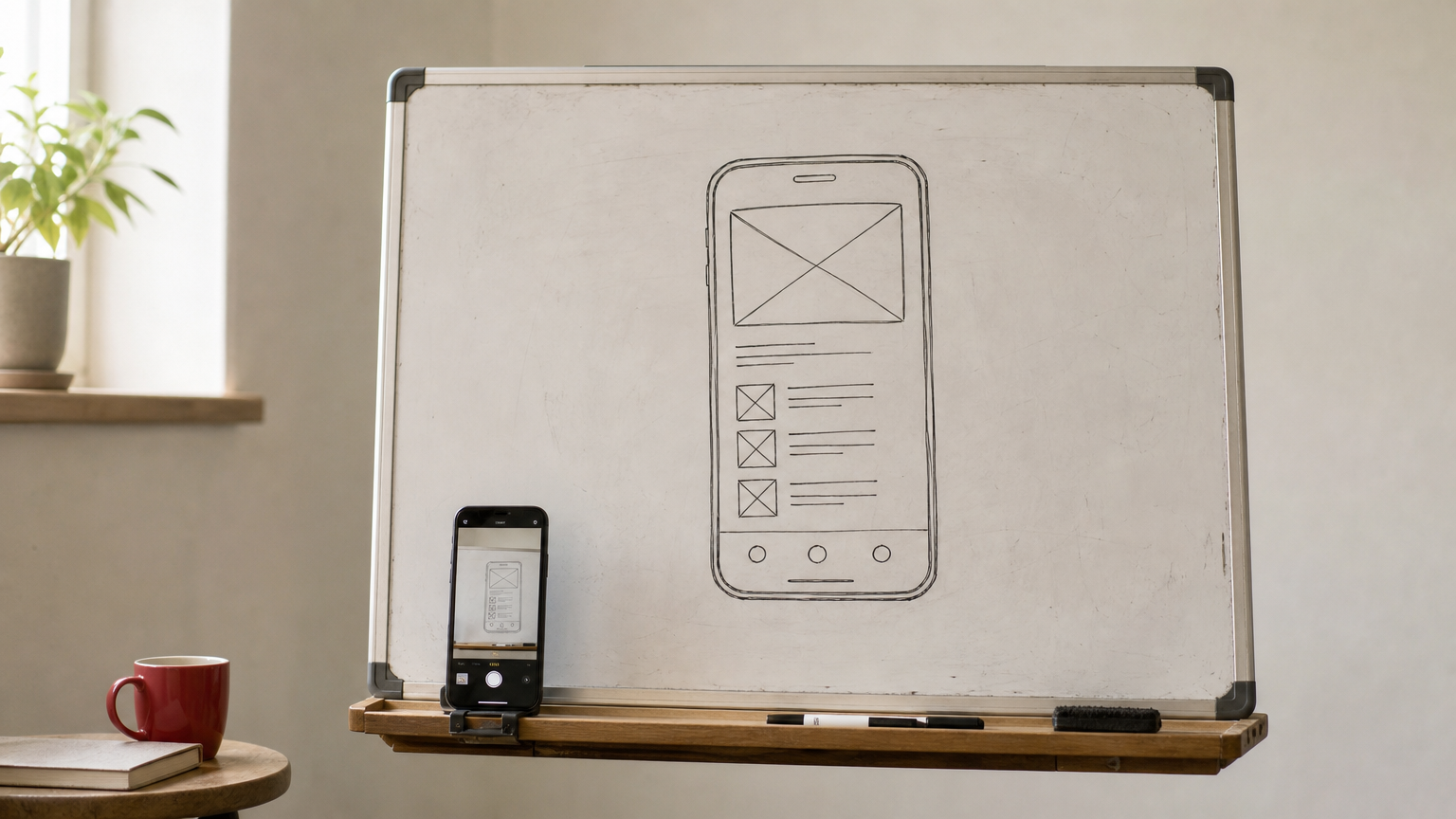
Uizard converts sketches and screenshots into editable screens, and it can also generate screens from a text description. You can photograph a whiteboard drawing and get a mockup you can click through, then adjust the elements on a canvas. Miro acquired Uizard in 2024, so it sits close to the whiteboard tools many teams already use.
The speed is the point. It shortens the gap between a rough idea and something you can show to a colleague or investor. For polished production design, you will still rebuild the work in a dedicated tool.
Uizard is the fastest path from whiteboard sketch to clickable draft.
Who it suits
Uizard suits non-designers who think visually and need to share an idea quickly.
- Founders pitching an app concept
- Product managers drafting a feature before a designer joins
- Marketers mocking up a landing page
Professional UI designers will outgrow it quickly, since they need design-system control that a mockup tool cannot give them.
Pricing and limits
Uizard uses a freemium model, with a free plan and paid tiers above it. Plan limits and prices change, so check its pricing page for the current numbers. The free tier is enough to test one or two ideas.
The limits are polish and originality. Generated screens can look generic, and for production-ready UI you will move the work into Figma. Use Uizard to get agreement on a direction, not to deliver the final design.
8. v0 by Vercel
v0 by Vercel is the best pick when your interface has to become real code, since it generates React and Tailwind components. It is the strongest option on this list for developers and designers who code.
What it does
You paste a prompt, attach reference screenshots, and v0 builds an interface from them. It also has an "Enhance prompt" option that rewrites your request to get better results, which helps when you are unsure how to phrase it. Follow-up requests in plain words, such as "make it more lightweight," restyle the result.
Because the output is code in a modern web framework, it can slot into an existing project. That makes it useful for turning a rough product requirements document into a first homepage or dashboard layout. Designers get to hand developers something that works, not just something that looks right.
Pick v0 when the goal is working front-end code, not a picture of an interface.
Who it suits
v0 suits people who live close to the codebase.
- Front-end developers who want faster starting layouts
- Designers who know some React and want to ship real prototypes
- Startup teams building a minimum viable product on a modern web stack
If you only need print, brand, or social graphics, v0 is the wrong tool.
Pricing and limits
v0 has a free tier, followed by paid plans with usage-based limits. Confirm the current credits and prices on Vercel's site, because AI pricing moves quickly. Test with a real screen from your project before paying.
It is web-app focused, so it does not help with brand work. Complex apps eventually need real code review, and you get the most from it if you understand basic React. Treat generated code like any other contributor's pull request.
9. Microsoft Designer
Microsoft Designer is the best free option for quick social graphics if you already have a Microsoft account. It is a sensible pick among free AI design tools when your budget is zero and your needs are simple.
What it does
You describe an image or post, and Designer generates designs and images for you. It offers layouts for social posts, text-to-image generation, and basic edits such as background removal. It is built for speed, so you can go from idea to a postable graphic in a few minutes.
It trades depth for convenience. You will not find the brand controls or layered editing of heavier tools. For a bakery announcing a new menu or a club posting an event, that is usually fine.
Microsoft Designer is the no-cost way to get a decent social graphic before lunch.
Who it suits
Designer works for people who want something postable, not something award-winning.
- Students and clubs making event posters and posts
- Small organizations with no design budget
- Anyone who needs occasional graphics and does not want another subscription
If you post daily and need a consistent brand look, Canva's paid brand kit is worth a look.
Pricing and limits
Designer is free with a Microsoft account. Microsoft has tied some higher-limit AI features to its paid plans, so check what your account includes before you plan a large batch of work.
The limit is depth. Output can feel generic, and complex layouts or tight brand rules are hard to enforce. For one-off posts, that tradeoff is acceptable.
10. ChatGPT
ChatGPT is the closest single answer to "is there a ChatGPT for design?" and the best pick for early-stage thinking: quick comps, design briefs, color directions, and iterative edits in one conversation. It is a creative partner more than a finishing tool.
What it does
ChatGPT generates and edits images inside a chat. Its strength is instruction following: it handles complex, multi-part prompts and lets you adjust the result across several turns. It can also write a design brief, suggest color palettes, and draft the copy for the graphic you are making.
Results improve a lot when you attach reference images, so give it examples of the style and layout you want. Many marketers use it to produce a rough mockup, then hand that to a designer or rebuild it in a design tool. That keeps the time-consuming work with the people who can finish it.
ChatGPT is where a design idea starts, not where the finished file should come from.
Who it suits
ChatGPT is a natural fit if you already use it for writing or research.
- Marketers who want rough mockups to hand to a designer
- Solo creators brainstorming concepts and copy together
- Anyone who wants one tool for the brief, the draft image, and the headline
If the final file must be editable and brand-accurate, move it to Canva, Figma, or Adobe.
Pricing and limits
ChatGPT has a free tier with limits, and the Plus plan costs $20 per month. Higher tiers exist for heavy users. Image limits on the free plan can change, so test your typical workload first.
There is no design canvas. Edits can regenerate the whole image instead of changing one element, and speed and top-end looks trail dedicated generators such as Midjourney. Use it for direction, then finish elsewhere.
How to choose the right AI design tool
Choose by job, not by hype. Name the output you need first, such as social posts, brand imagery, app screens, or coded UI. Then pick the tool built for that output and test it on your own brief.
Match the tool to your work
This table pairs common jobs with the tool most likely to fit. It also answers the question "which AI tool is best for designing?" because the answer changes with the job.
| Your work | Start with | Why |
|---|---|---|
| Social posts, flyers, ads | Canva Magic Studio | Editable output and templates |
| Client work with licensing questions | Adobe Firefly | Commercially safe models |
| Concept art, moodboards | Midjourney | Strongest image style |
| Banners and posters with text | Ideogram | Readable lettering |
| Prototypes from Figma files | Figma Make | Uses your components |
| Fast UI exploration | Google Stitch | Several directions quickly |
| Sketch to mockup | Uizard | Turns drawings into screens |
| UI that becomes code | v0 by Vercel | React and Tailwind output |
| Zero-budget social graphics | Microsoft Designer | Free with an account |
| Briefs, comps, brainstorming | ChatGPT | Conversational iteration |
If you want just four, pick Canva for everyday graphics, Adobe Firefly for client work, Figma Make for product design, and Midjourney or ChatGPT for ideas.
Name the output first, and the right tool usually picks itself.
Which AI design tools are free
Several tools on this list offer a free way in. Treat free tiers as a test, since the best models and higher volume usually sit behind paid plans.
| Tool | Free access | Paid entry point |
|---|---|---|
| Canva Magic Studio | Free plan, limited AI use | Pro plan |
| Adobe Firefly | Free credits | Paid plans, Creative Cloud bundles |
| Midjourney | None | From $10 per month |
| Ideogram | Limited slow credits | Roughly $7 to $42 per month |
| Figma Make | Limited allowance | Included with paid plans |
| Google Stitch | Labs experiment, check terms | Not applicable |
| Uizard | Freemium | Paid tiers |
| v0 by Vercel | Free tier | Usage-based plans |
| Microsoft Designer | Free with Microsoft account | Some features in paid Microsoft plans |
| ChatGPT | Free with limits | Plus at $20 per month |
Prices were accurate when this was written and change often. Confirm them on each vendor's page.
Check licensing before client work
Most AI design tools allow commercial use on paid plans, but terms differ by tool and by tier. Read the license for the plan you would actually buy. Adobe positions its own Firefly models as commercially safe, while other vendors leave more to your judgment.
Ownership is a separate question from permission. Under US Copyright Office guidance, copyright requires human authorship, so output generated entirely by AI from a prompt has weak or no protection. Work where you made real creative contributions, through selection, arrangement, and substantial editing, can be protected to the extent of your contribution. Keep your sketches, iterations, and edit history. You can read the agency's position on its AI and copyright page.
To test any tool before you commit, run this short check:
- Run your real brief through the free tier, not the vendor's demo prompt.
- Confirm you can edit and export the result in your own tools.
- Read the commercial license for your plan.
- Estimate a realistic month of usage before choosing a plan or annual billing.
Pick one tool and start
The right AI design tool is the one that fits your job. Canva covers everyday marketing visuals, Firefly covers client work with licensing needs, Midjourney and Ideogram cover images, and Figma Make, Stitch, Uizard, and v0 cover interfaces. Microsoft Designer and ChatGPT give you a low-cost way to start.
Choose one job from your current workload, test one tool on it using the free tier, and judge the result against what you would make by hand. Keep what saves you time and drop the rest. If you want more beginner-friendly breakdowns of AI tools and everyday tech, browse more guides on Trick and Tech.


